

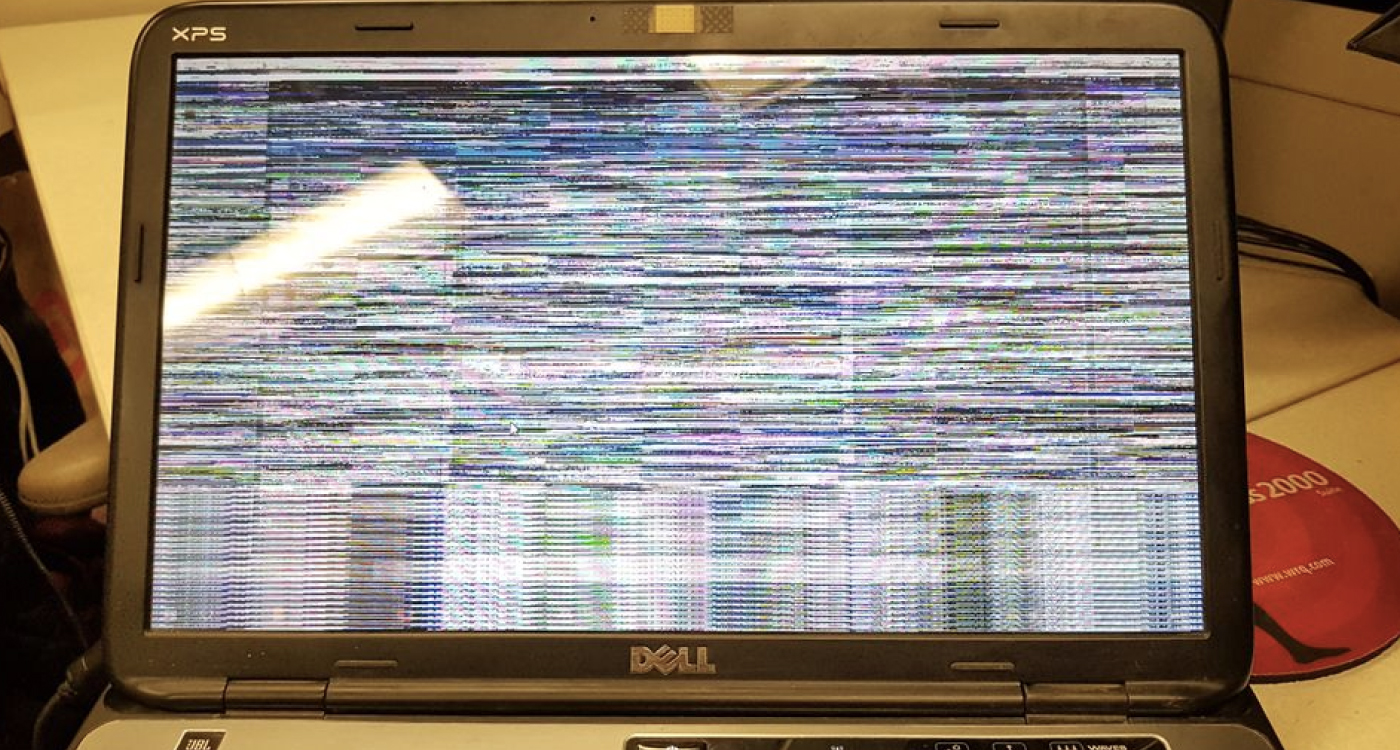
Laptop screen flickering is annoying and distracting. It can also indicate a bigger issue.
In today’s digital age, a stable laptop screen is vital. Whether you work, study, or watch videos, screen flickering disrupts your tasks. This guide will help you understand the causes and fix your laptop screen flickering problem. From outdated drivers to hardware issues, several factors might be at play.
Read on to find simple steps to diagnose and solve this problem. By the end, your laptop screen should be flicker-free and smooth again. Ready to fix your screen? Let’s dive in!
Credit: lapsol.ke
Identify The Cause
Laptop screen flickering can be a frustrating issue. To fix it, you must first identify the cause. Pinpointing the exact problem helps in applying the right solution. Let’s explore some common causes and how to check them.
Check Cable Connections
Loose cable connections can cause screen flickering. Ensure all cables are securely connected. Especially the ones between the screen and the motherboard. Sometimes, simply reconnecting the cables can solve the problem. If the cables are damaged, you might need to replace them.
Test With External Monitor
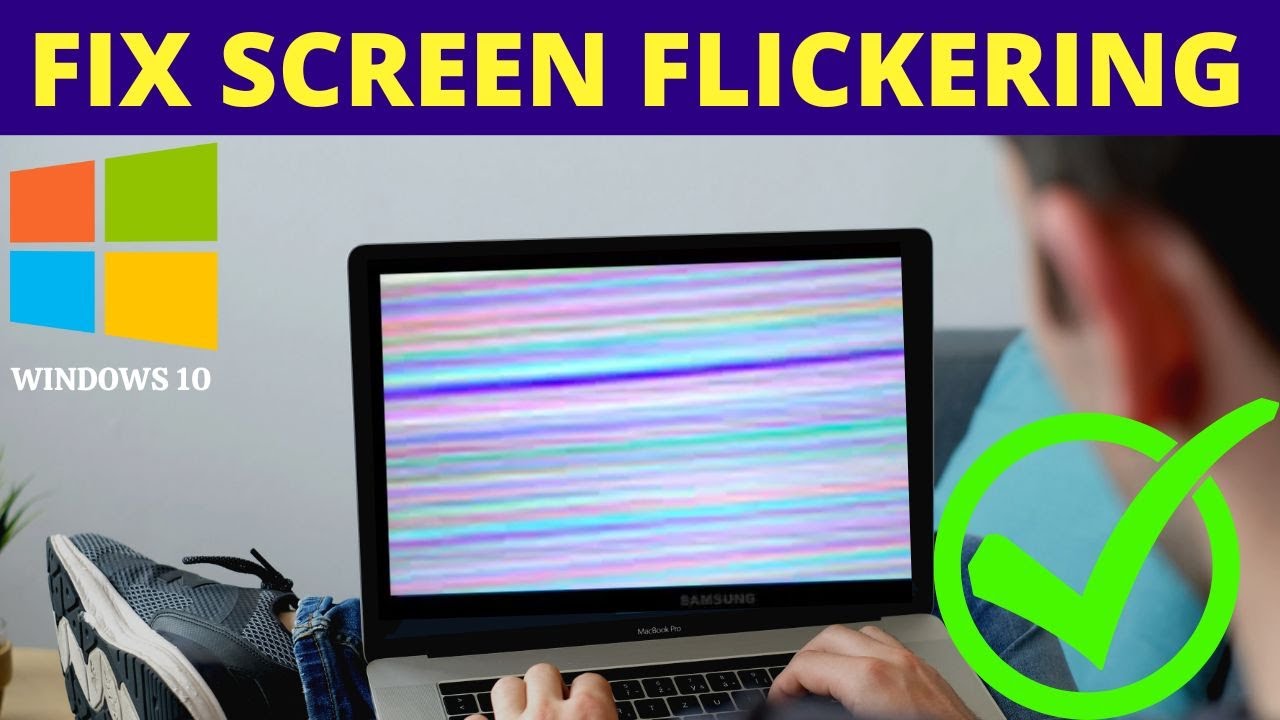
Connecting your laptop to an external monitor can help. This test can reveal if the issue is with the screen or the laptop itself. If the external monitor works fine, the laptop screen might be faulty. If the flickering persists on the external monitor, the issue may be internal.
Credit: www.youtube.com
Update Graphics Drivers
One common reason for laptop screen flickering is outdated graphics drivers. Keeping your graphics drivers updated can solve this issue. Updated drivers ensure your hardware and software work well together. This can improve your laptop’s performance and fix screen problems.
Download Latest Drivers
First, visit the official website of your laptop’s manufacturer. Go to the support or downloads section. Enter your laptop’s model number. Look for the latest graphics driver for your model. Download the correct driver for your operating system. This step ensures you get the right driver.
Install And Restart
After downloading, locate the driver file. It is usually in the ‘Downloads’ folder. Double-click the file to start the installation process. Follow the on-screen instructions. After installing, restart your laptop. A restart ensures the new drivers are fully loaded. Your screen flickering issue should be resolved. If not, there might be other issues. Consider seeking professional help.
Adjust Display Settings
Adjust your display settings to fix laptop screen flickering. Change the refresh rate for a smoother display experience. This simple adjustment often resolves flickering issues quickly.
When your laptop screen starts flickering, it can be incredibly frustrating. A common fix is to adjust the display settings. This can often solve the problem without needing any hardware repairs. Below, we’ll walk you through two key adjustments: changing the refresh rate and modifying the resolution.
Change Refresh Rate
One of the first things you should try is changing the refresh rate.
The refresh rate is how many times per second the display updates. A low refresh rate can sometimes cause flickering.
To change it, go to your display settings. Right-click on your desktop and select “Display settings.” Scroll down and click on “Advanced display settings.” Here, you can adjust the refresh rate.
Choose a higher rate and see if that helps. Some laptops default to 60Hz, but bumping it up to 75Hz or higher can make a difference.
Modify Resolution
Another setting to tweak is the screen resolution. A mismatched resolution can lead to flickering issues.
To modify the resolution, go back to “Display settings.” This time, look for the “Resolution” dropdown menu.
Try different resolutions to see which one works best. Sometimes, your laptop might be set to an unsupported resolution.
Choosing the “Recommended” option is usually a safe bet.
Have you ever found that playing with these settings solved your screen flickering problem? Your experience might help others in the same situation.
By making these small adjustments, you can often fix screen flickering without needing professional help.
Inspect Hardware Issues
Check the hardware connections to fix a flickering laptop screen. Loose cables or damaged components may cause display issues. Secure all connections and inspect for damage.
Laptop screen flickering can often be due to hardware issues. Checking the hardware components can help identify the problem. Start by examining the screen and cables, and look for any physical damage.
Examine Screen And Cables
Check the laptop screen for any visible issues. Look for cracks or black spots. These can cause flickering. Next, inspect the cables. Ensure they are securely connected. Loose cables can disrupt the display signal.
Open the laptop case if you feel comfortable. Look at the cable connections inside. Sometimes, these cables might get dislodged. Gently press them back into place. This can often fix the flickering issue.
Look For Physical Damage
Examine the laptop for physical damage. Look at the hinges and frame. Bent or broken parts can affect the screen. Check the display panel itself. Any damage here can cause screen flickering.
Inspect the laptop keyboard area. Sometimes, pressing on certain keys can trigger flickering. This might indicate underlying hardware problems. In such cases, professional help might be needed.
“`
Run System Diagnostics
When your laptop screen starts flickering, it can be both annoying and alarming. One effective way to diagnose and potentially fix the issue is to run system diagnostics. This process will help you identify whether the problem is software-related or due to hardware faults. By using the built-in tools available in your operating system, you can quickly pinpoint the root cause and take appropriate action. Let’s dive into how you can use these tools and interpret the results.
Use Built-in Tools
Your laptop comes with built-in diagnostic tools that can help you troubleshoot screen flickering. If you’re using a Windows laptop, you can access the Windows Memory Diagnostic tool by typing “Windows Memory Diagnostic” in the search bar and selecting the tool. Follow the prompts to restart your computer and run the test. This tool will scan for memory-related issues that could cause screen flickering.
For Mac users, you can use the Apple Diagnostics tool. To access this, restart your Mac and hold down the D key while it boots up. This tool will check your hardware for any issues that might be causing the screen to flicker. The entire process takes just a few minutes and provides you with a detailed report.
Interpret Results
Once the diagnostics are complete, you’ll receive a report detailing any issues found. If the report indicates a memory issue, consider running a more extensive memory test or replacing the RAM. If the diagnostics tool finds no hardware issues, the flickering may be due to outdated drivers or software conflicts.
In some cases, the diagnostic report might suggest contacting technical support. This is often the best course of action if you’re not comfortable handling hardware repairs yourself. Pay attention to any error codes given in the report. These codes can be useful when seeking help from online forums or customer support.
Have you ever run system diagnostics on your laptop? What did you discover? Knowing how to use these tools can save you time and potentially avoid costly repairs.
Check For Software Conflicts
Laptop screen flickering can be very frustrating. It often stems from software conflicts. Identifying and resolving these conflicts can help stabilize your screen.
Disable Background Programs
Background programs can cause your screen to flicker. These programs may consume resources, leading to display issues. To disable them, open the Task Manager. Press Ctrl + Shift + Esc to access it. Look for programs running in the background. Right-click on each and select ‘End Task’. This action can free up resources and reduce flickering.
Boot In Safe Mode
Booting in Safe Mode can help identify software conflicts. Safe Mode runs only essential programs. It can help pinpoint the issue. To boot in Safe Mode, restart your laptop. Press F8 repeatedly as it starts up. Choose ‘Safe Mode’ from the options. Observe if the screen flickers in Safe Mode. If it doesn’t, the issue is likely due to software conflicts.
Perform A System Restore
Performing a System Restore can help fix laptop screen flickering. Restore your laptop to an earlier date when the screen was stable. This action can resolve issues caused by recent changes or updates.
Performing a system restore can fix laptop screen flickering. Sometimes, software changes cause flickering issues. A system restore helps revert your laptop to a previous state. This method is effective and straightforward.
Choose Restore Point
Start by finding a suitable restore point. Open the Control Panel and search for “System Restore.” Click on it. You will see a list of restore points. Pick a date before the flickering started. Ensure the restore point is from when your laptop was stable.
Revert Changes
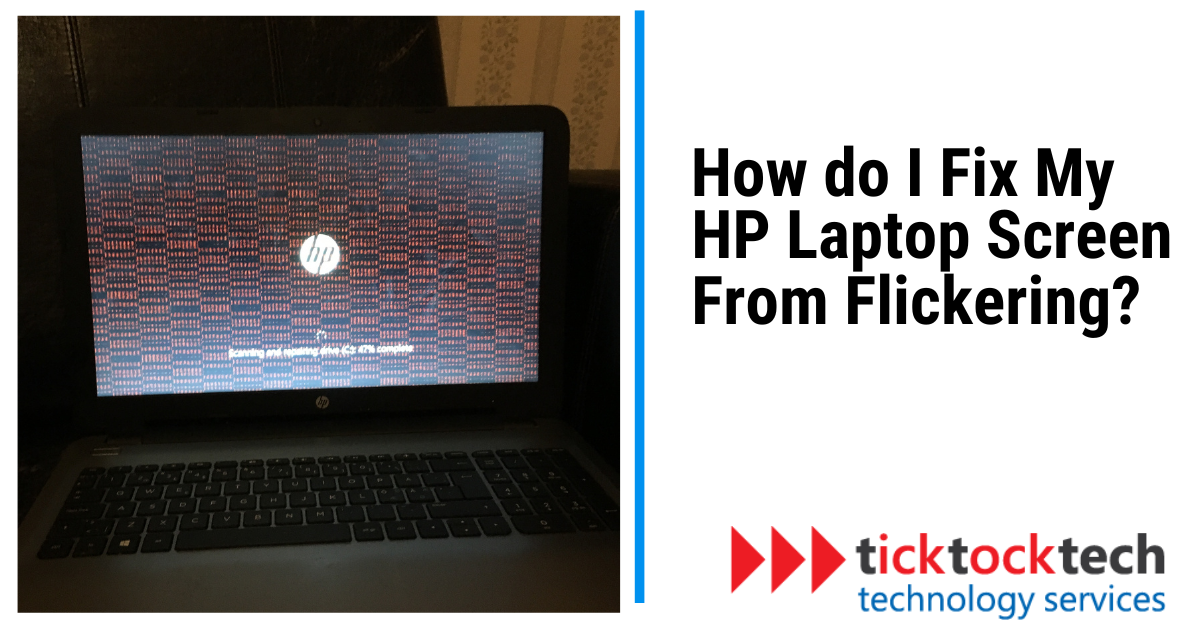
Once you have chosen the restore point, click “Next.” Follow the instructions on-screen. Confirm your choice and let the system restore process begin. It might take a few minutes. Your laptop will restart during this process. After the restart, check the screen. The flickering should be gone.
Credit: ticktocktech.com
Seek Professional Help
When your laptop screen starts flickering, it can be frustrating and disruptive. Sometimes, no matter what troubleshooting steps you take, the issue persists. That’s when it’s crucial to seek professional help. This ensures that the problem is diagnosed correctly and fixed without causing further damage.
Contact Manufacturer
Your first step should be to contact your laptop’s manufacturer. They have specialized knowledge about your specific model and can offer tailored advice. Often, they provide support through phone calls, live chats, or emails.
Check if your laptop is still under warranty. If it is, the manufacturer might cover the repair costs or even replace your laptop. Always have your laptop’s model number and serial number handy when contacting them.
Visit Certified Technician
If contacting the manufacturer does not resolve the issue, it’s time to visit a certified technician. These professionals have the expertise to handle complex hardware problems. They can quickly identify whether the flickering is due to a faulty screen, loose cables, or another component.
Make sure to choose a technician certified by your laptop’s manufacturer. This way, you ensure that your laptop is in good hands and that genuine parts will be used for any replacements. Ask friends or search online for reviews to find a reliable technician nearby.
Have you ever faced a screen flickering issue that seemed impossible to fix on your own? Seeking professional help not only saves time but also prevents the risk of causing more damage. What are your thoughts on reaching out for professional assistance when DIY fixes fall short?
Frequently Asked Questions
How Do I Stop My Laptop Screen From Flickering?
Update your graphics drivers. Adjust screen refresh rate. Check for loose connections. Disable hardware acceleration. Run antivirus software.
Why Is My Laptop Full Screen Flickering?
Laptop screen flickering can result from outdated graphics drivers, faulty display cables, or hardware issues. Update drivers and check connections.
How Much Does It Cost To Fix A Flickering Laptop Screen?
Fixing a flickering laptop screen typically costs between $50 to $150. The price varies based on the issue and labor involved.
Why Is My Screen Suddenly Flickering?
Your screen might flicker due to loose cables, outdated drivers, or hardware issues. Try updating your drivers and checking connections.
Conclusion
Fixing a laptop screen flicker can be straightforward. Try updating drivers first. Adjust the display settings next. Check for software conflicts. If it persists, inspect the hardware. Simple steps often resolve the issue. Regular maintenance helps avoid future problems. Follow these tips for smooth screen performance.
Your laptop’s display should work perfectly now. Happy computing!

“I’m someone who loves trying out all the newest tech gadgets! I spend a lot of time testing things like phones, tablets, and computers & accessories. I look at everything carefully and tell you exactly what I think, good or bad. I’ve been doing this for a long time, so I know a lot about how these things work. I want to help you decide if a gadget is really worth your money!”